Agent Service Online Manual(ENG)
🖋 updated. 2025.03.21
💡 Click on the images for a detailed view.
💡 To download a PDF, print the current page as a PDF file.
Korea Intellectual Property Protection Agency (KOIPA) Contact Information
- Main Contact Number 1600-9099
- Email ipcenter_help@koipa.re.kr
Table of Contents
1. Login
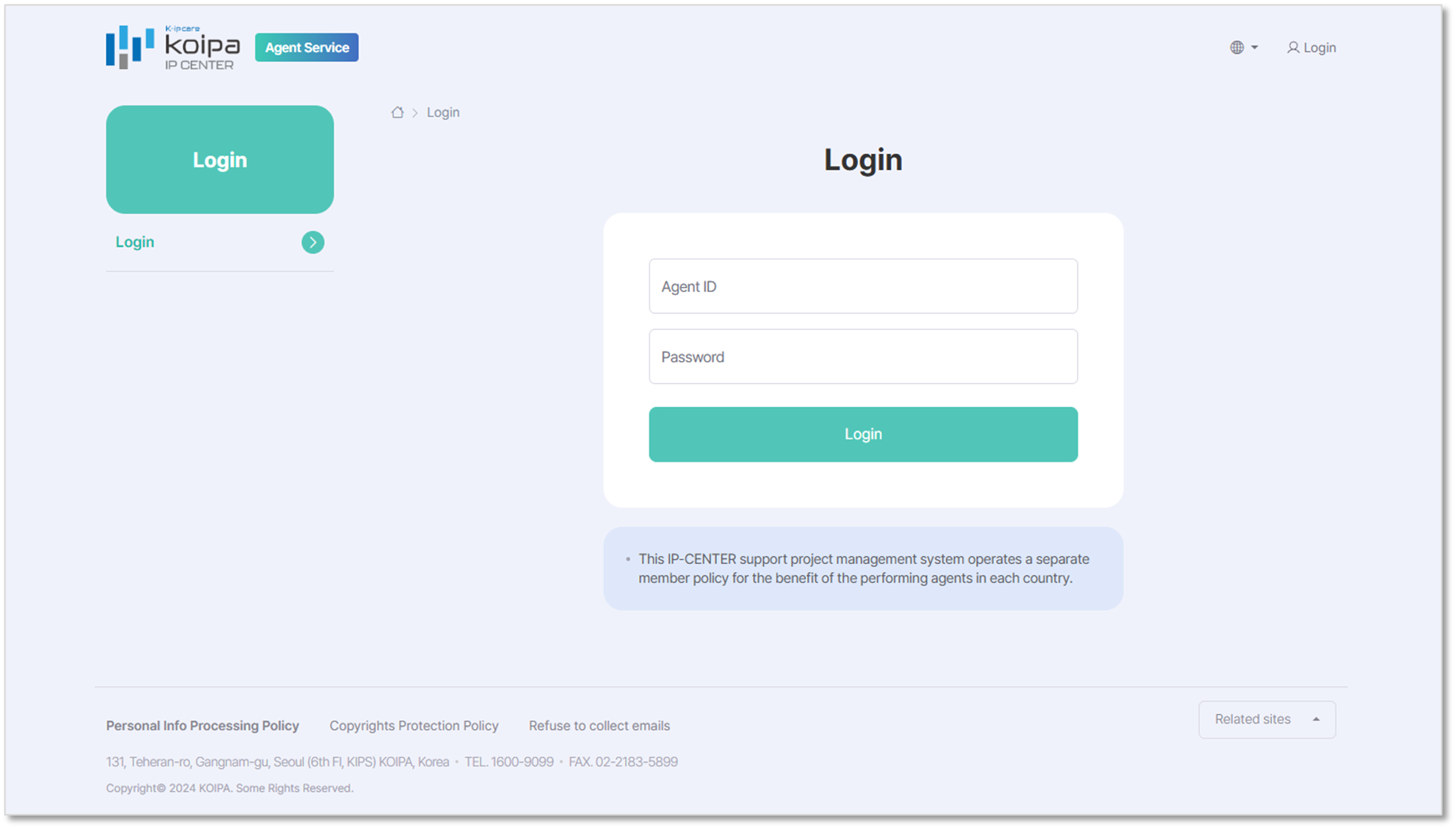
- The Proxy Agent Service is accessible only with an account issued by the Korea Intellectual Property Protection Agency (KOIPA).
- For account issuance or reset requests, please contact KOIPA (see contact details above).
2. Support Project Agreement
- The designated proxy agent of the supported company decides whether to accept and perform the assigned support project.
- Once a decision (agree/disagree) is made, it cannot be reversed.
- If no response is given within five days from the request date, the agreement request will be automatically canceled.
① Log in with the proxy agent account.
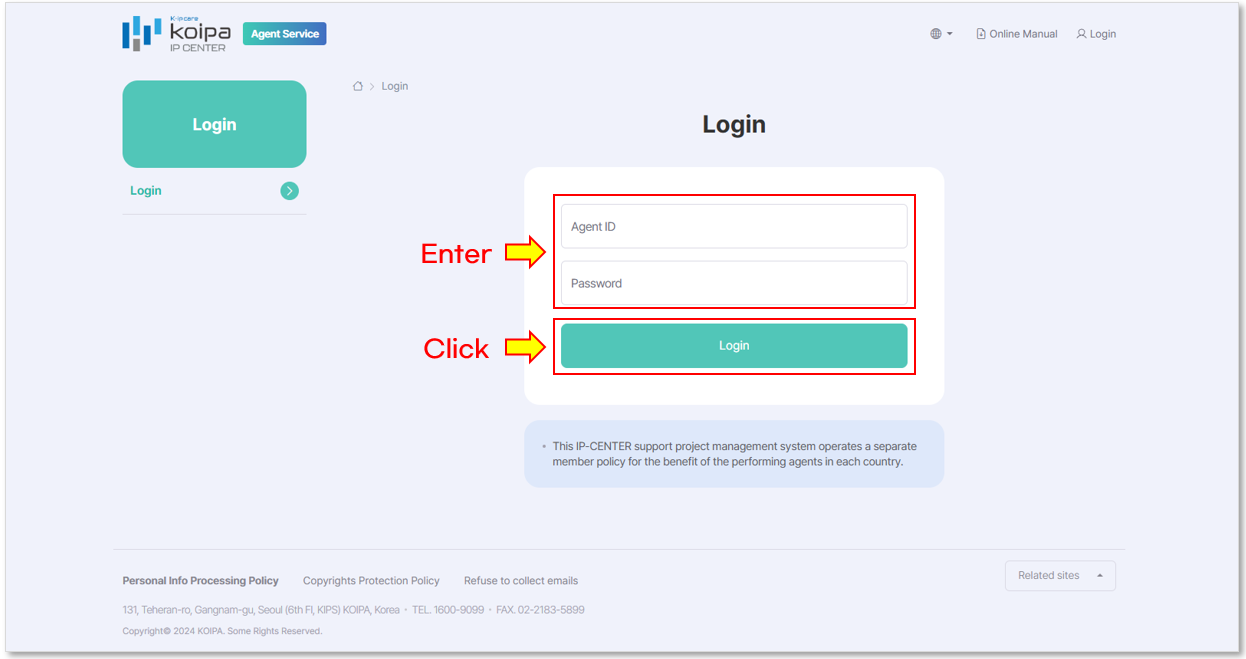
② Click on [Support Project Agreement].
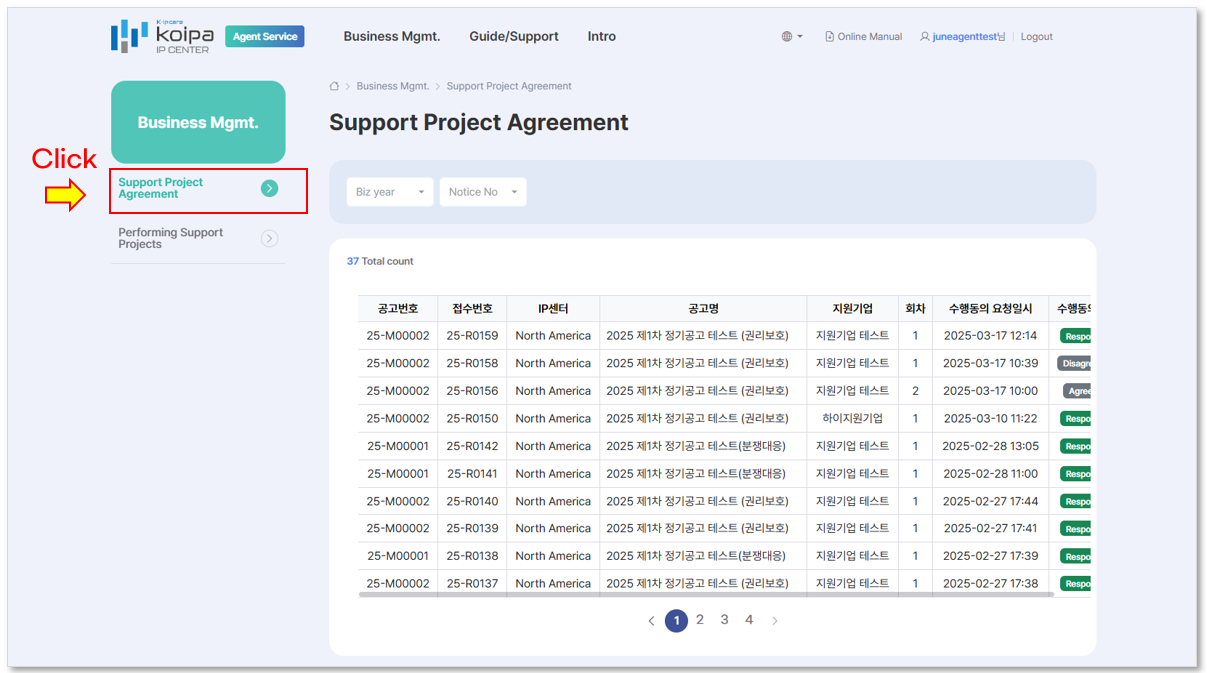
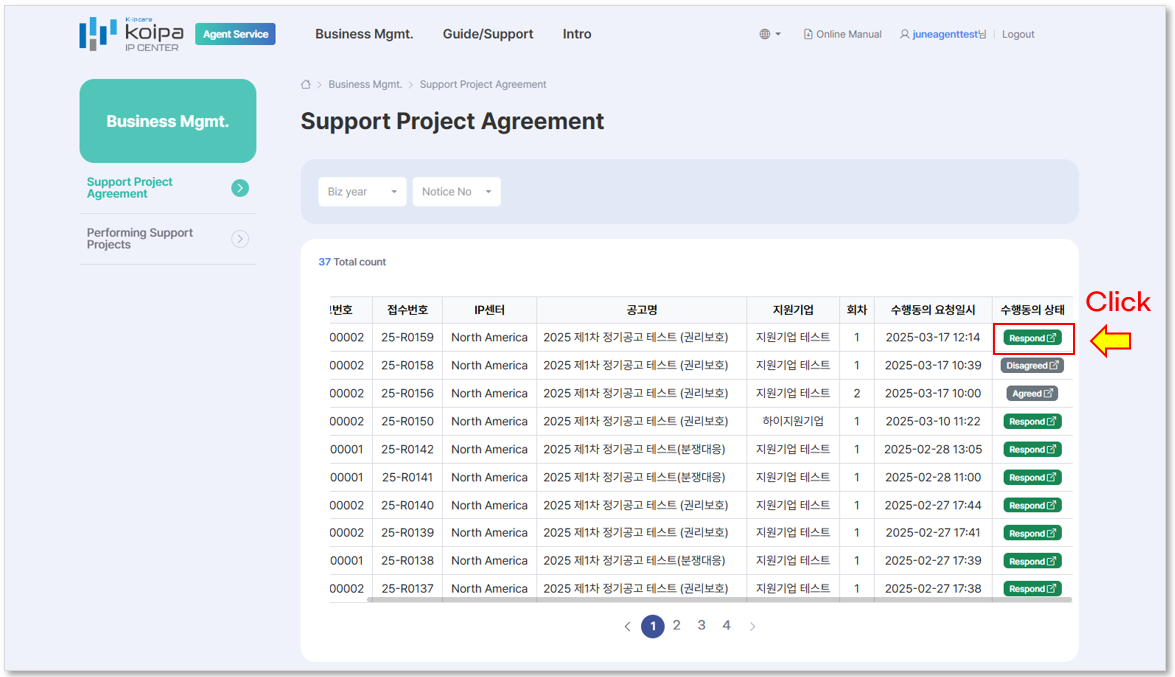
③ Click [Respond] for the requested agreement.
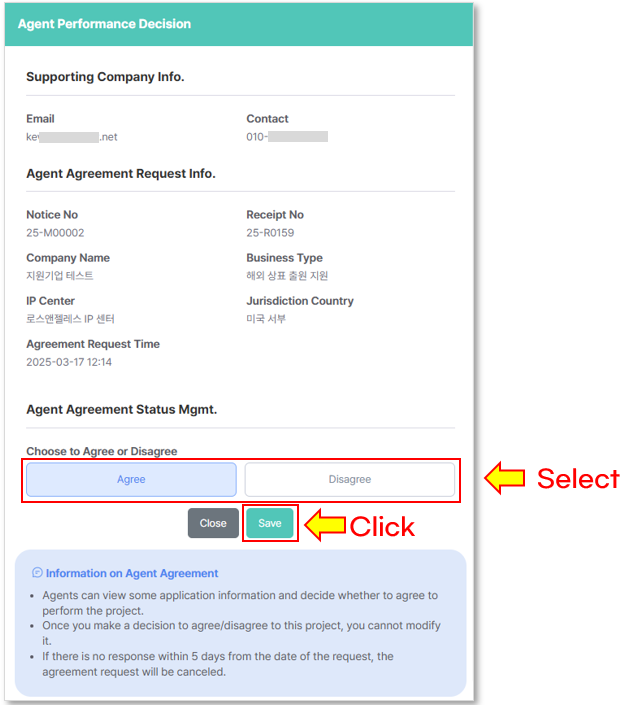
④ Select either [Agree] or [Disagree], then click [Save].
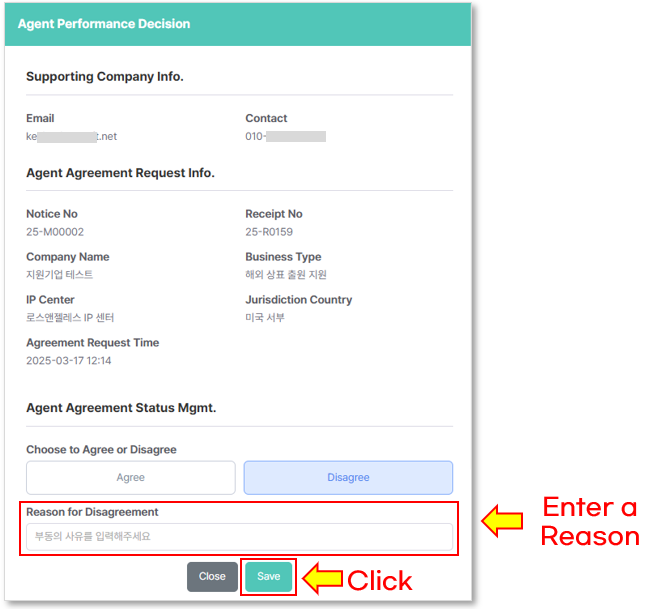
⑤ If selecting [Disagree], provide a reason.
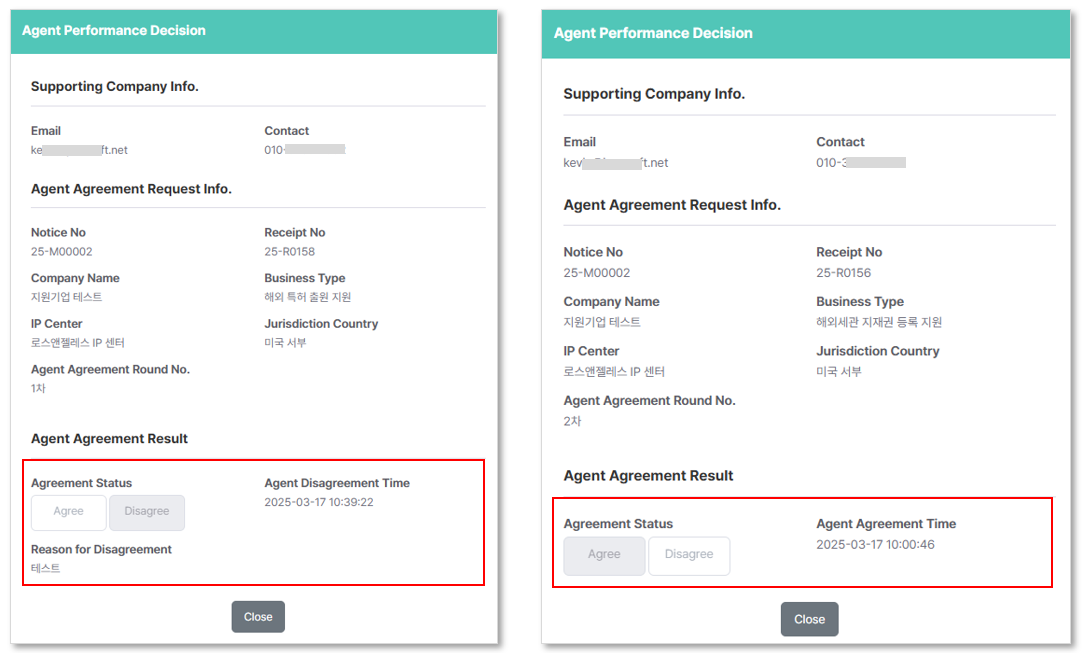
⑥ Once submitted, the decision (agree/disagree) and response history will be recorded.
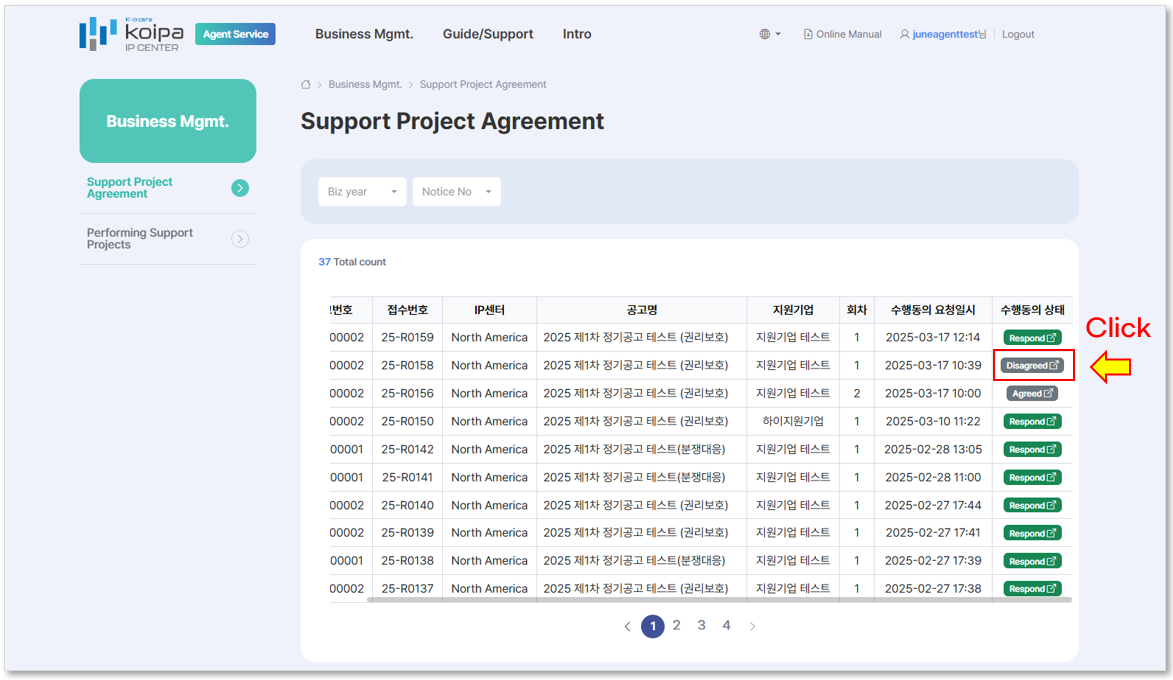
⑦ Details such as agreement status, timestamp, and reasons for disagreement can be reviewed at any time.
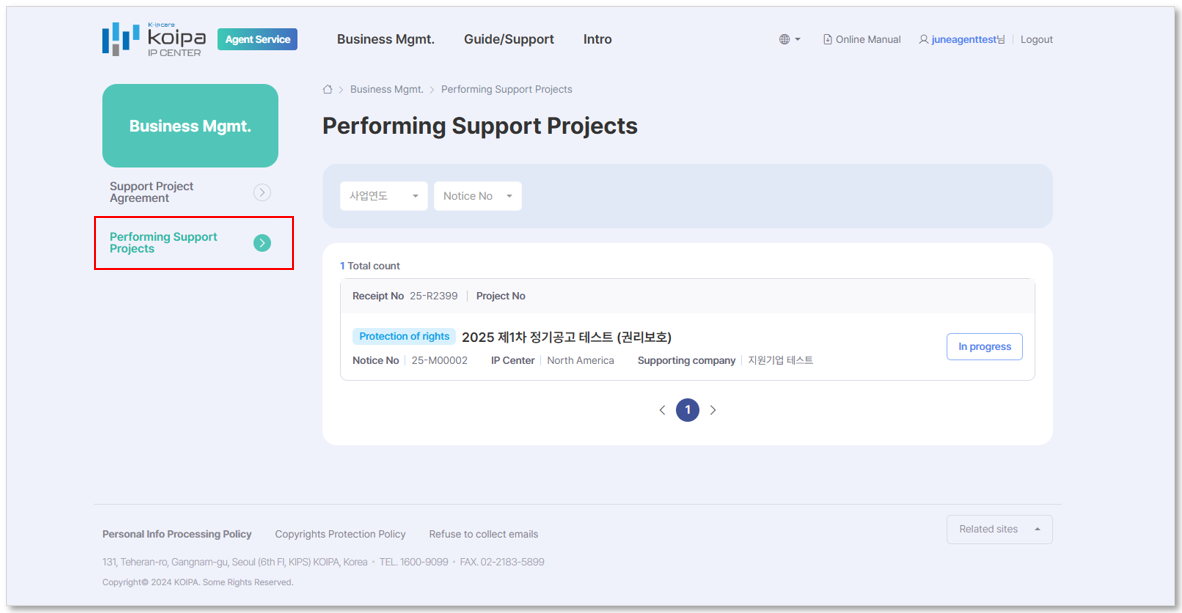
3. Performing Support Projects
This section manages the overall process, from online contract signing to project execution and completion.
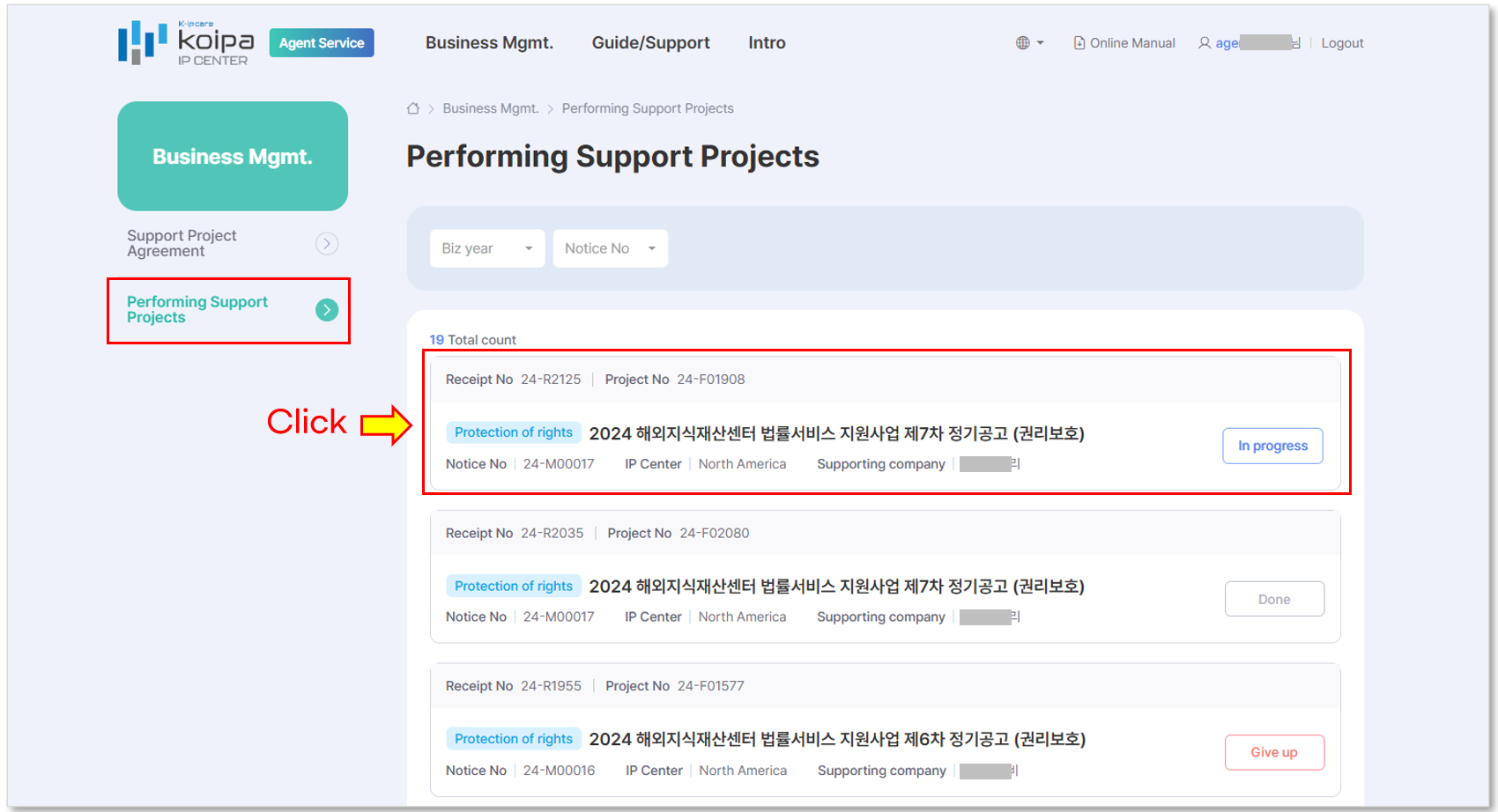
STEP 1. Contract Information
The Project Agent is required to pre-enter the fundamental contract details to execute the support project contract.
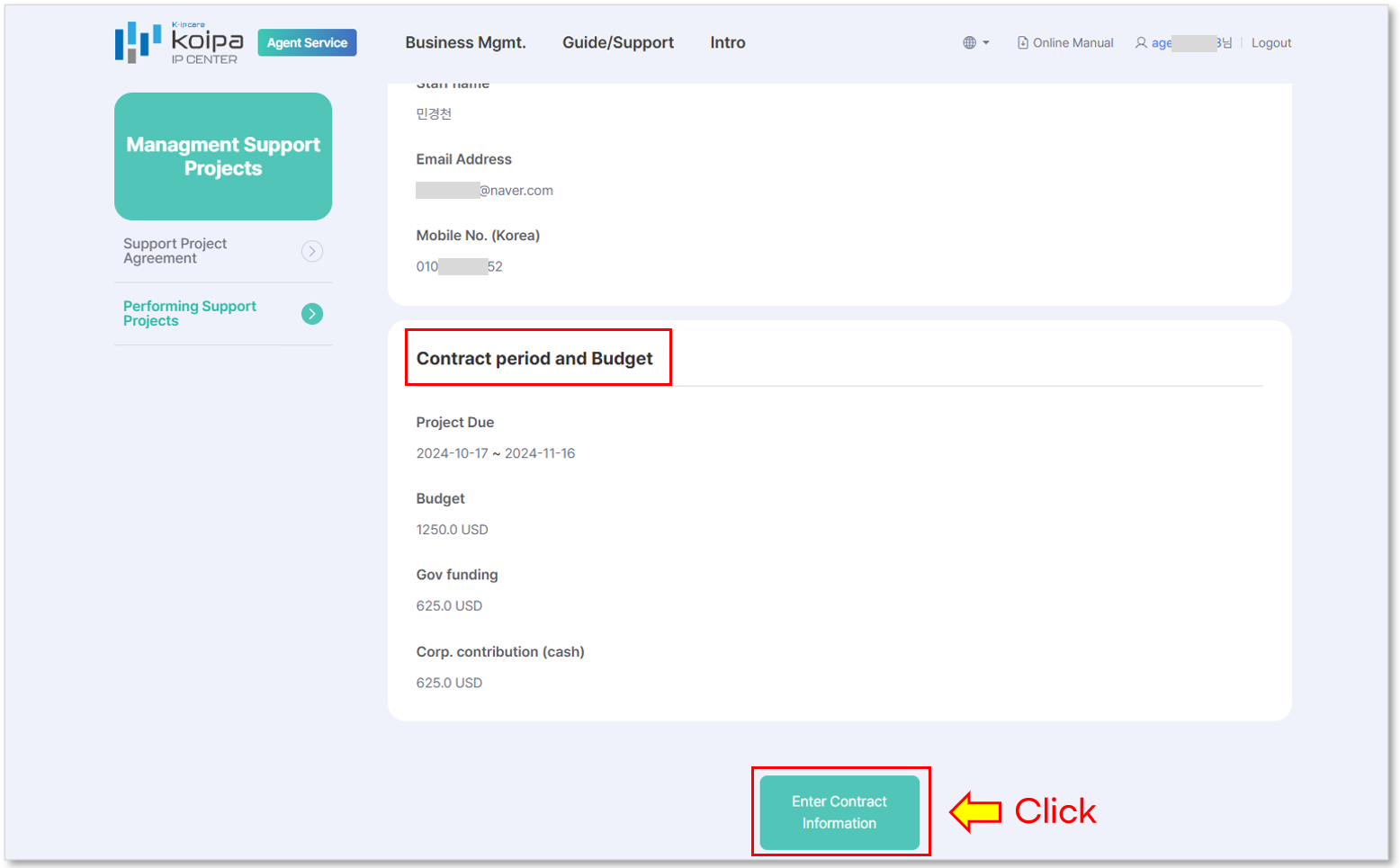
① Click on the project to enter information in the [Performing Support Projects] menu.
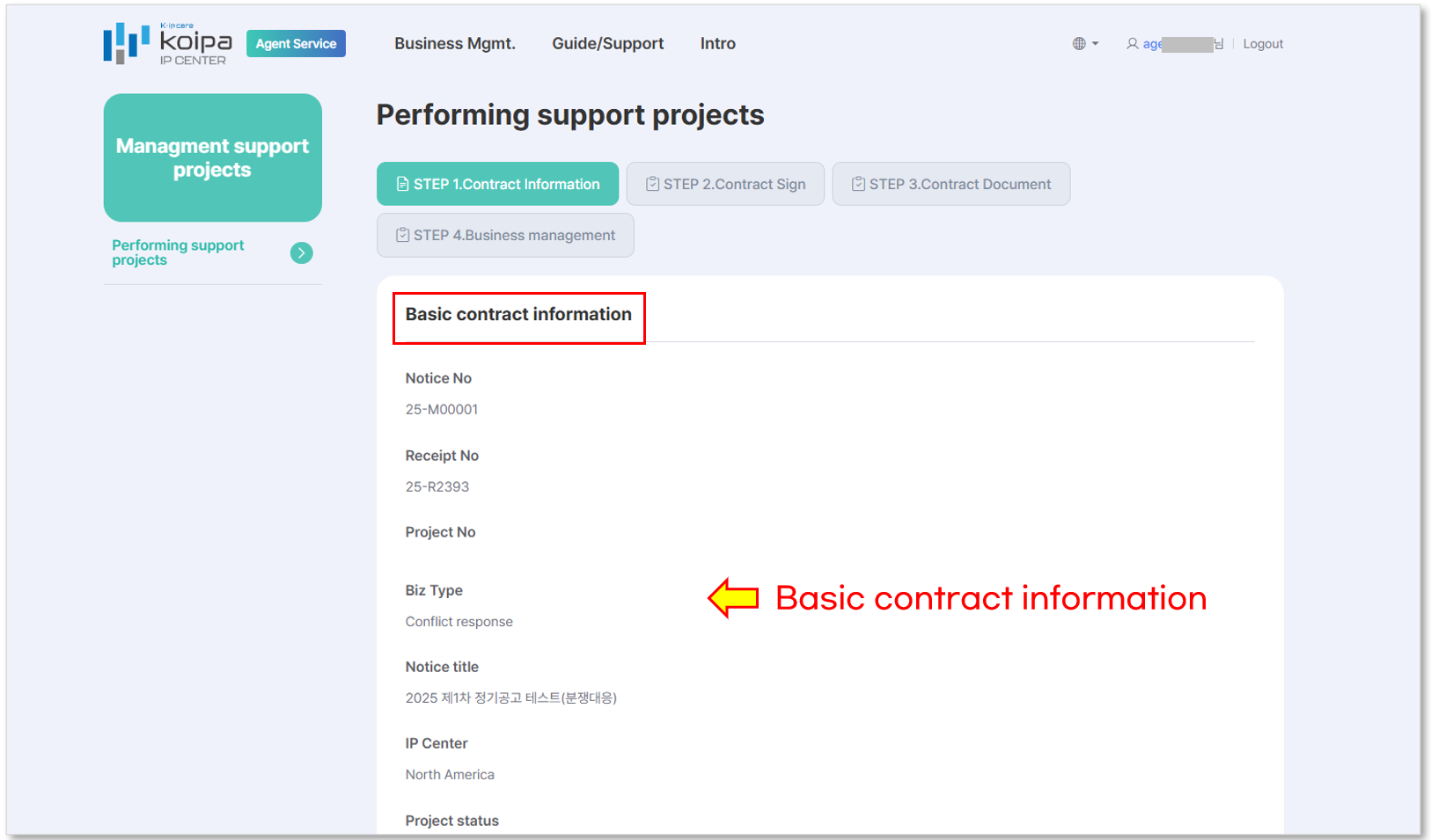
② Check the [Basic Contract Information], including the project number and business type.
③ Click the [Enter Contract Information] button at the bottom and fill in the contract period, government support funds, and company contribution amount.
- The contract period and project fund information entered will be reviewed by the support company and administrator.
- To proceed with the online contract, you must enter the contract period and project fund information in advance.
STEP 2. Contract Sign
- The support project contract with the Overseas Intellectual Property Center is executed online via an electronic contract.
- Before proceeding with the online signature, please ensure the following two requirements are met:
- ① Pre-registration of the representative's signature image file
- ② Pre-entry of the company representative's name
- Registration/Input Path: [Click company name at the top right > Member Information > Edit]
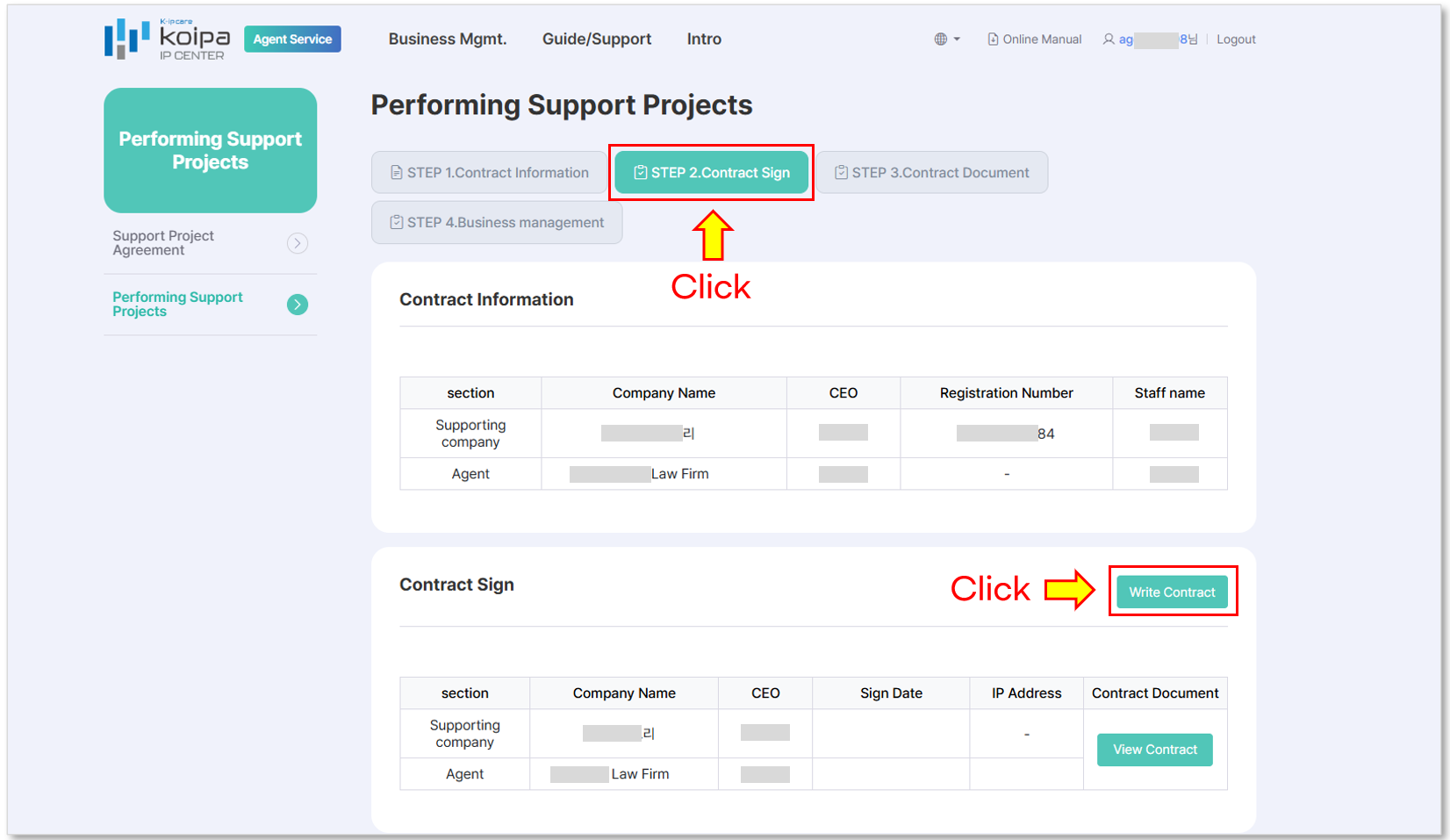
① Select the project to sign in the [Performing Support Project] menu.
② Navigate to the [STEP 2. Contract Sign] tab and click [Write Contract].
- The contract must be drafted by the Project Representative.
- If the contract has not been drafted, the support company cannot review or sign it.
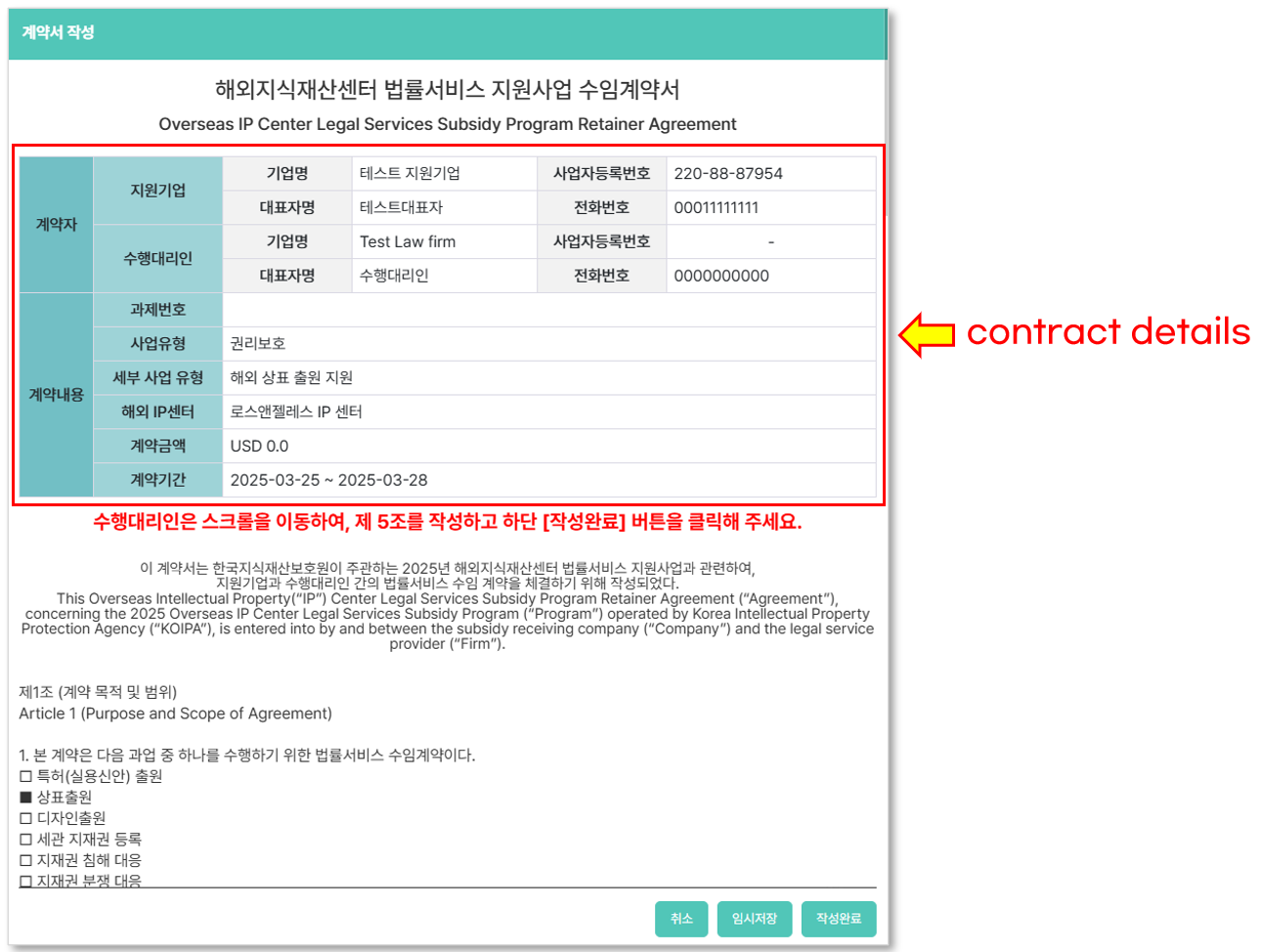
③ In the contract drafting screen, verify that all contract details are displayed correctly in the top section. If there is incorrect information, go to the [STEP 1. Contract Information] tab and edit it before proceeding.
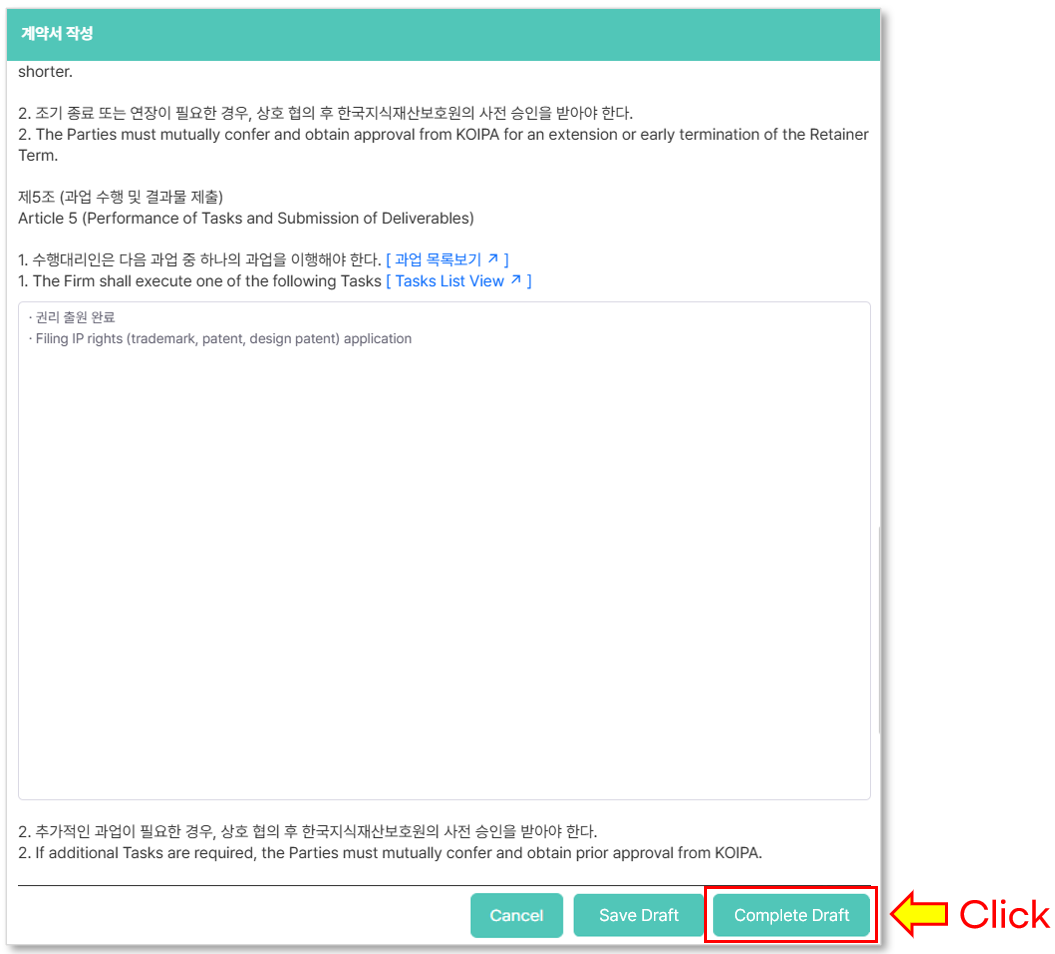
④ Scroll down and complete Article 5 of the contract.
Click
[View Task List] to see an example of the tasks.
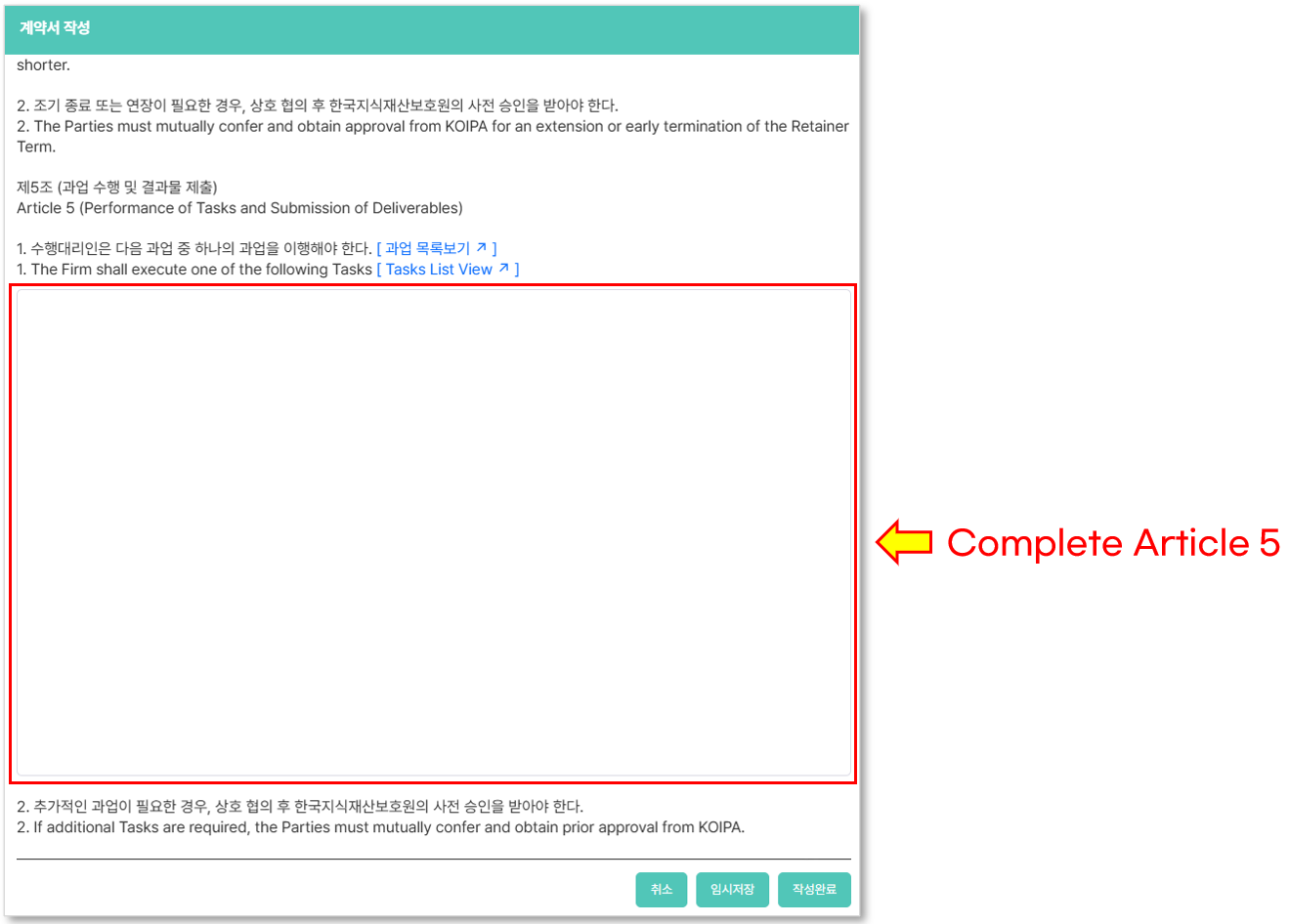
⑤After filling out Article 5 , click [Complete Draft].
- Once [Complete Draft] is clicked, the support company will be able to sign the contract electronically.
- After clicking [Complete Draft] , an automatic email request for electronic signing will be sent to the support company.
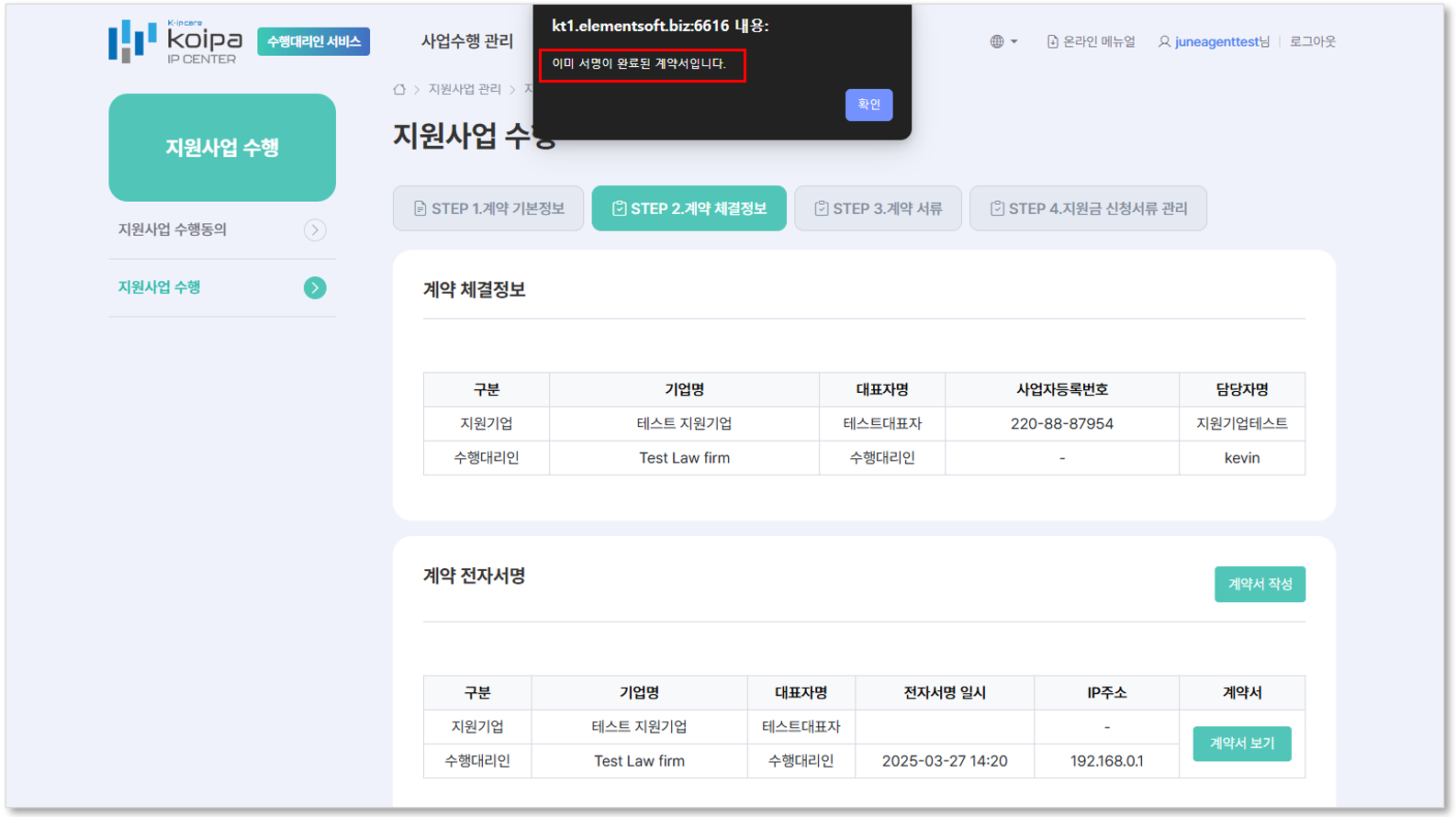
Amendment Scope of the Contract
- The contract may be amended only before both the Supported Company and the Project Agent have affixed their electronic signatures.
- Once either party has electronically signed the contract, no further modifications shall be permitted.
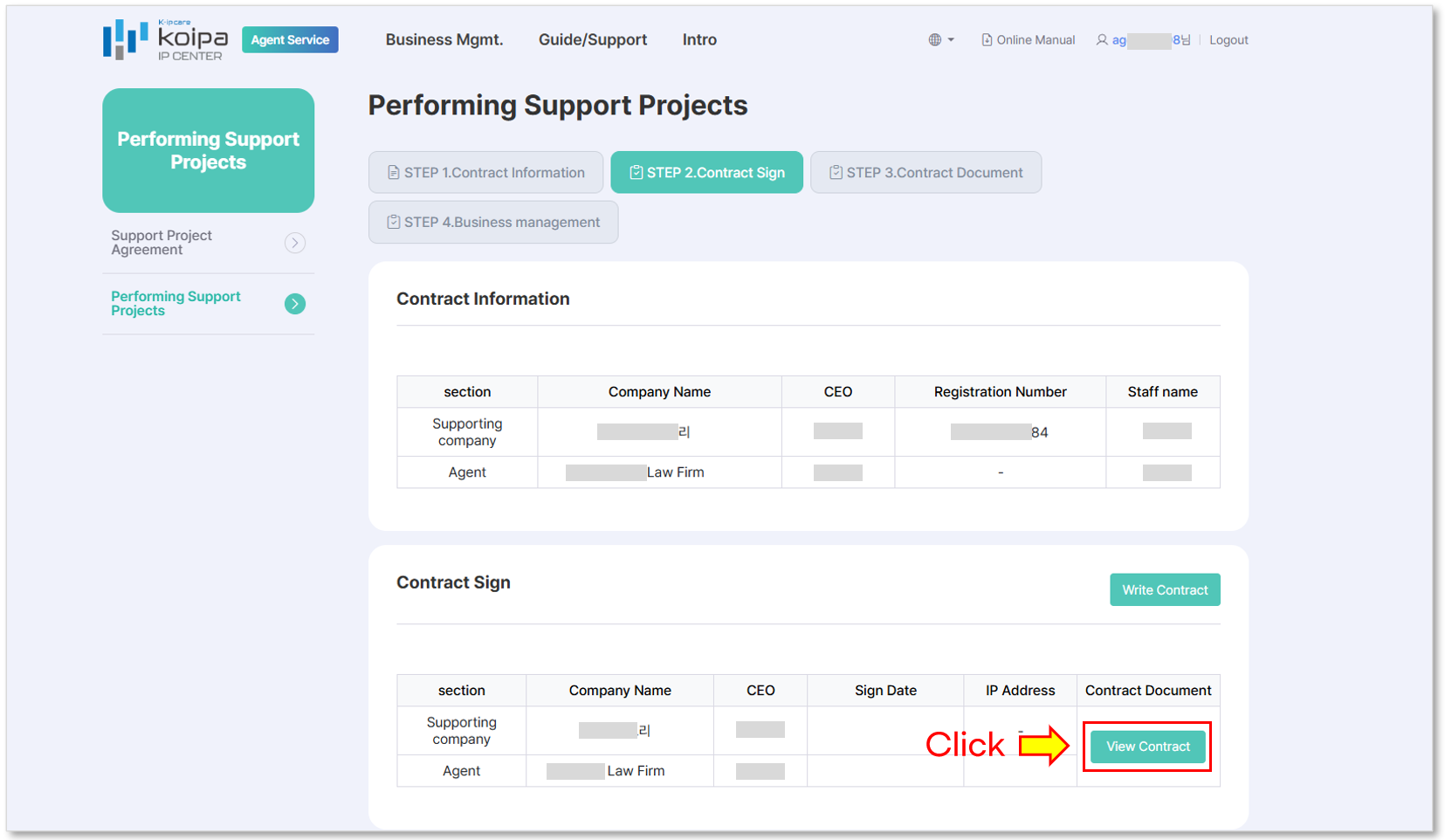
⑥ To sign the contract electronically, click [View Contract].
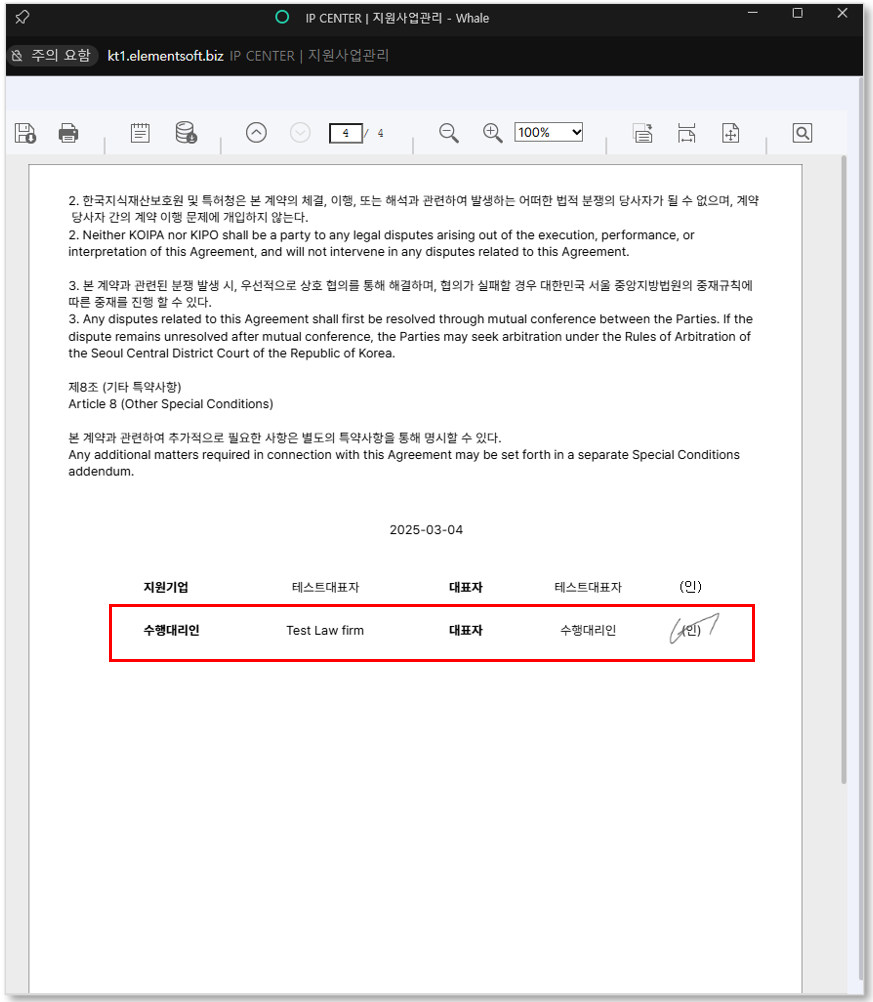
- The signature image registered in the member information will be used for the electronic signature.
- If the signature image has not been registered, upload it first.
Registration Path: [Click company name at the top right > Member Information > Edit]
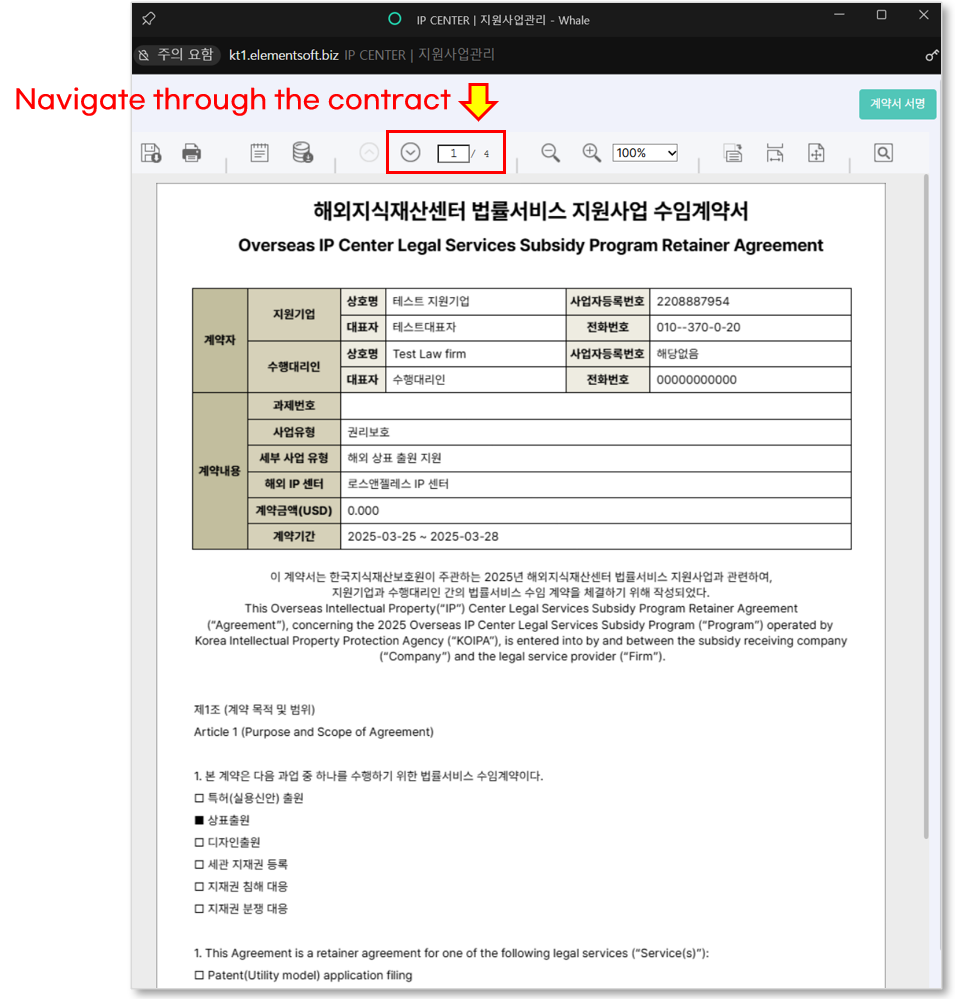
⑦ Navigate through the contract and review all details on the final page.
If any errors are found, pause the signing process and correct them first.
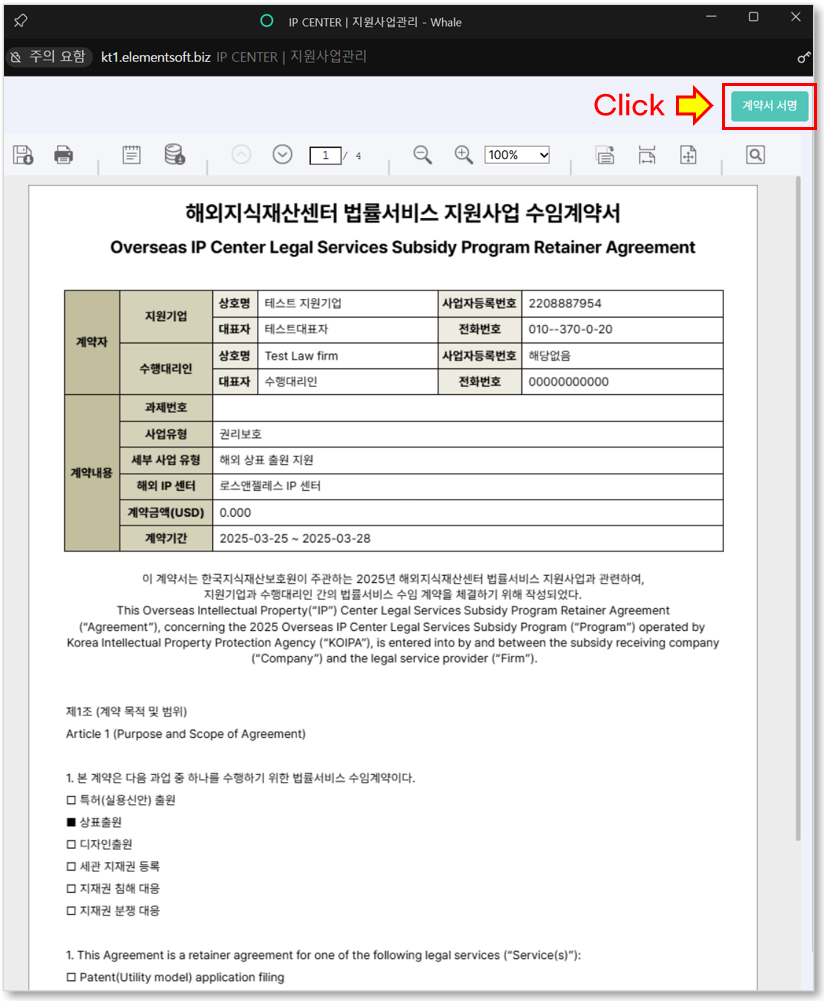
⑧ Click [Sign Contract] at the top right.
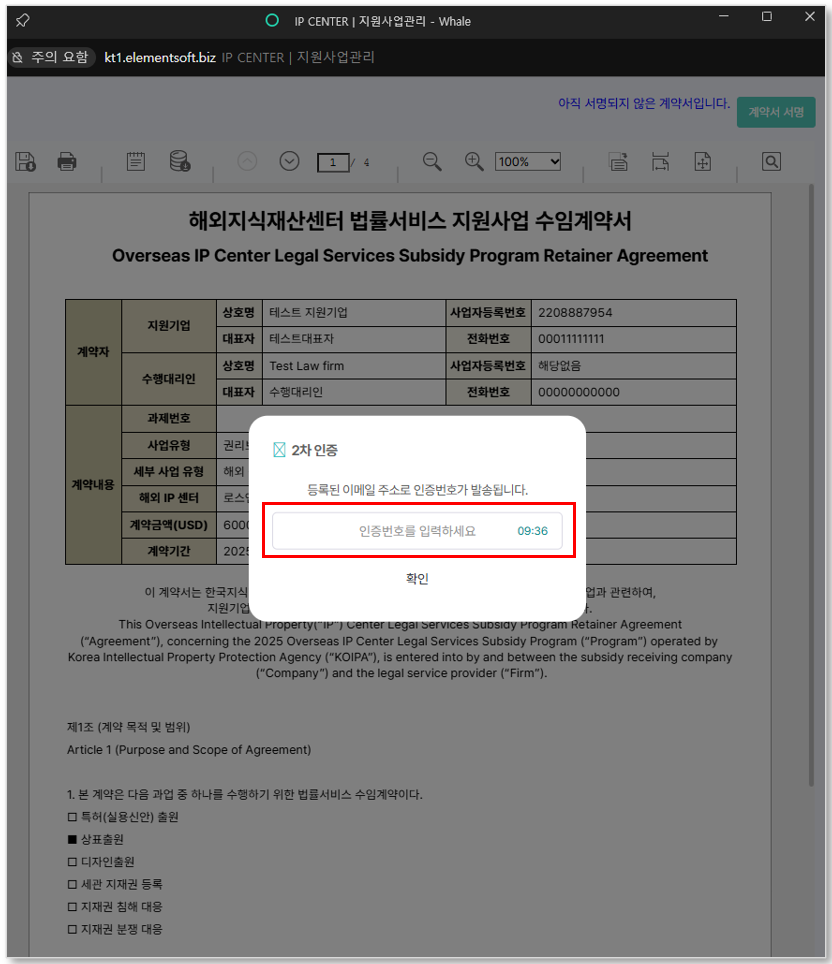
For secure contract execution, an
authentication code (OTP) will be sent to the responsible person’s email for two-step verification.
⑨ Enter the authentication code received via email within 10 minutes and click [Confirm].
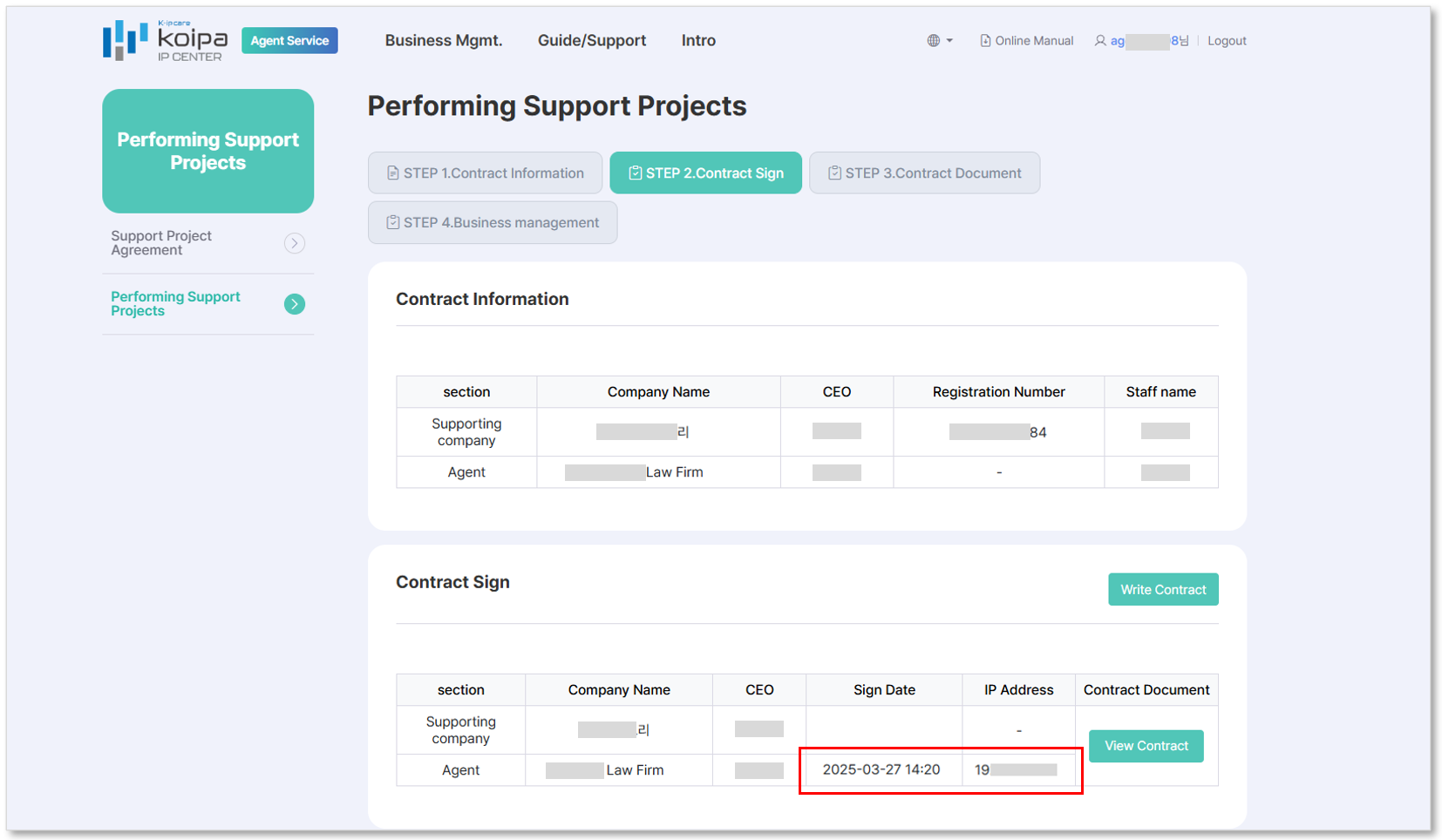
⑩ Once the authentication is successful, the signing date and time will be recorded. Click [View Contract] to check the completed, signed contract.
Procedure for Contract Amendments
① Request contract modification from the Korea Intellectual Property Protection Agency (KOIPA) Headquarters Administrator.
② The KOIPA Headquarters Administrator will reset the existing contract through the system.
③ The Project Agent must click the [Draft Contract] button and revise the contract accordingly.
④ Both the Supported Company and the Project Agent must re-sign the amended contract.
STEP 3. Contract Documents
① Download and review contract-related documents submitted by the support company.
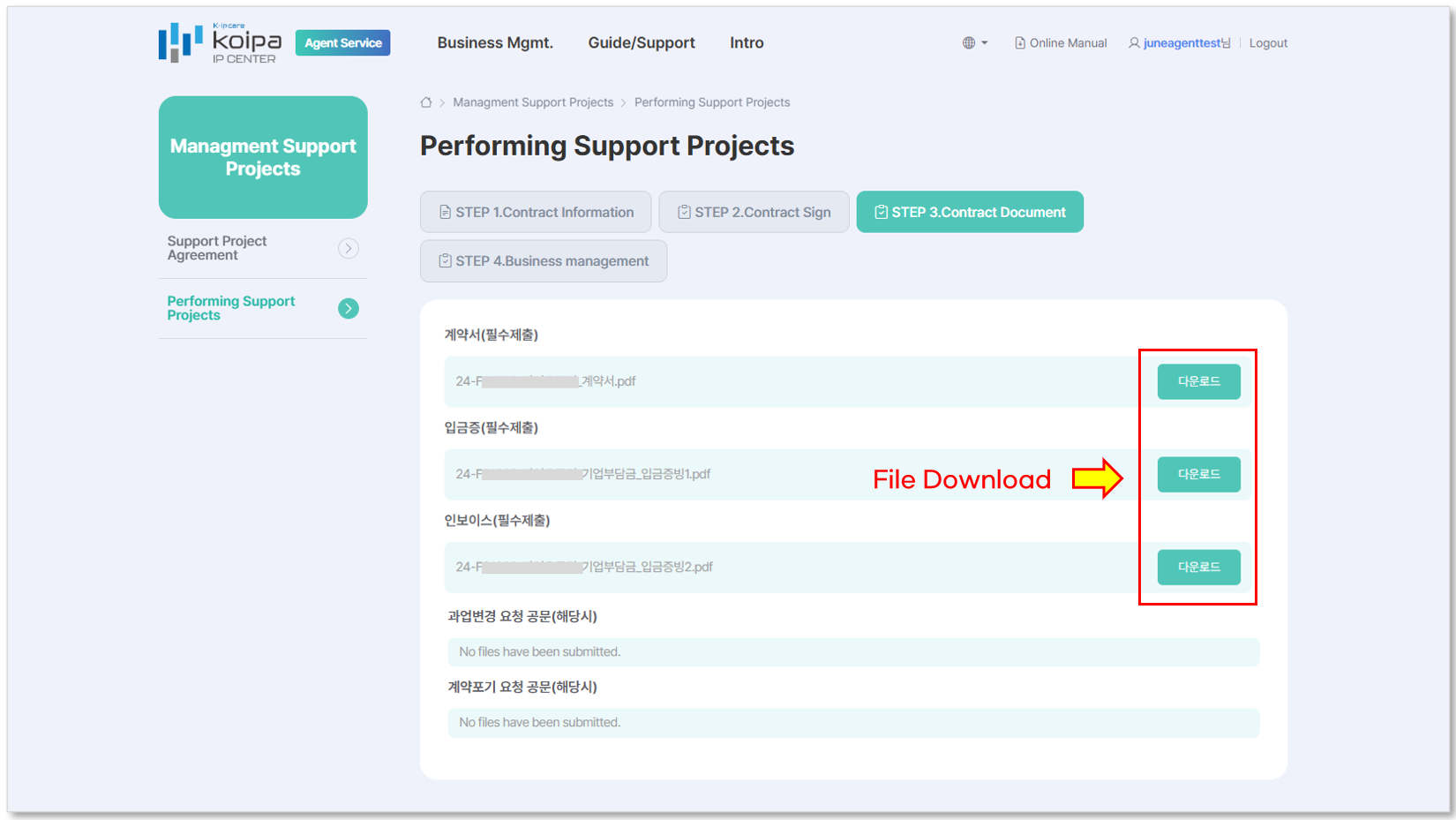
STEP 4. Management of Grant Application Documents
This menu is for submitting and managing performance result documents required for government grant applications.
① Click [Registration Project Info].
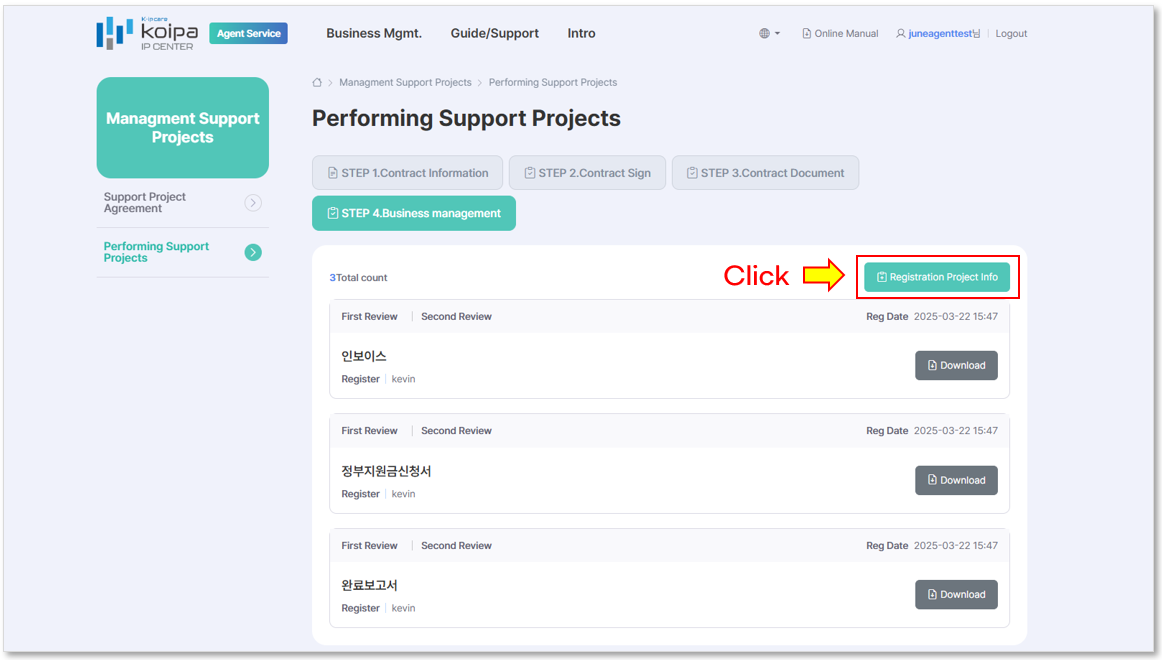
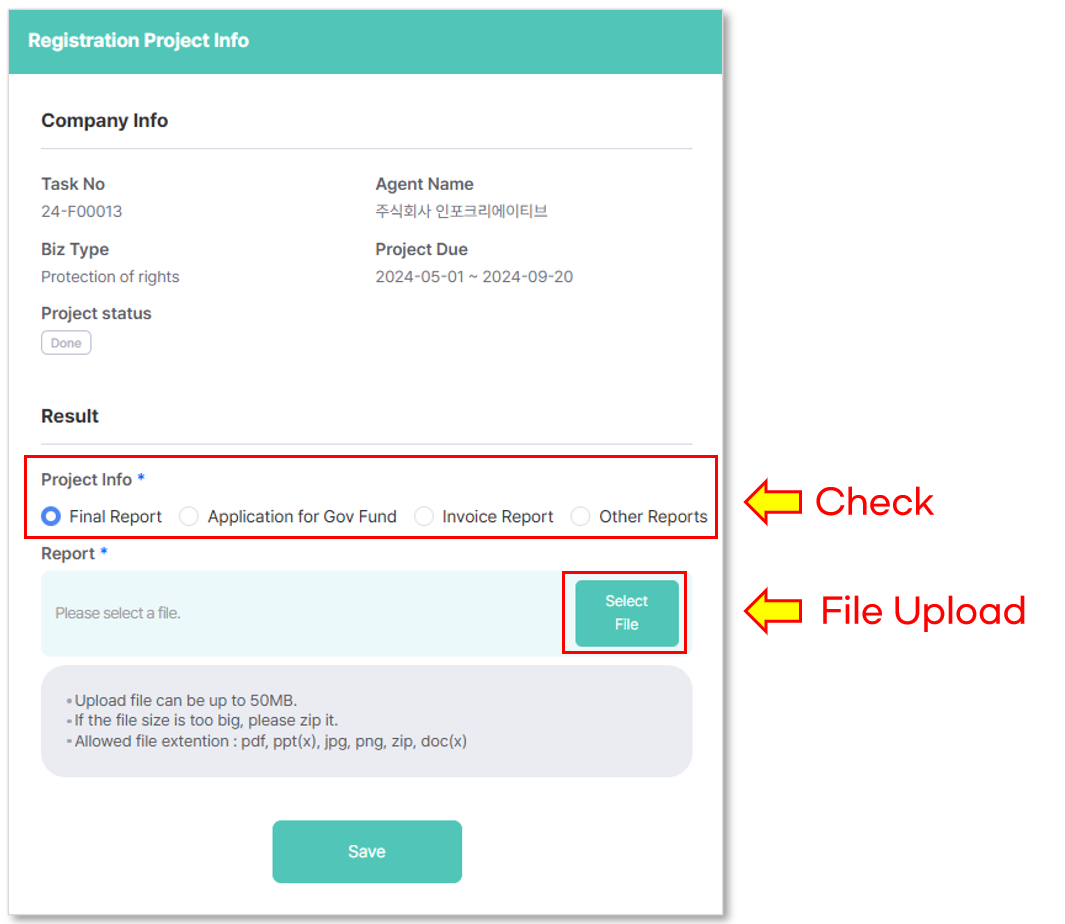
② Select the type of report to be submitted and attach the relevant file.
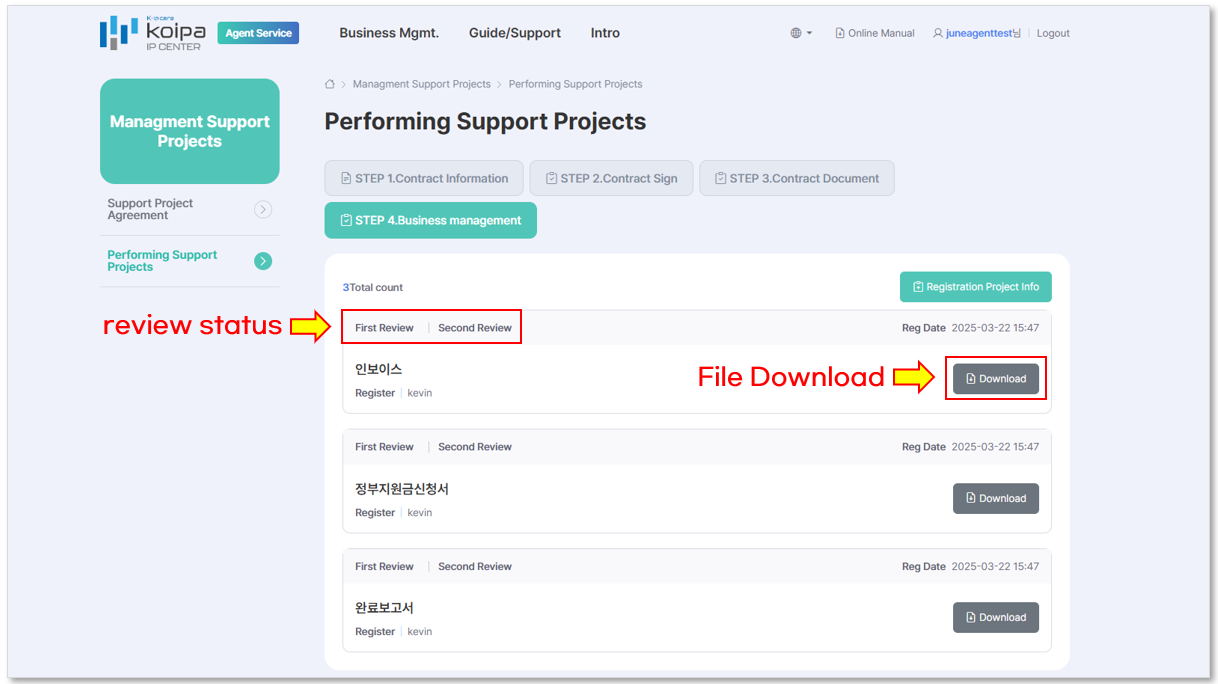
③ Submitted documents will be listed and can be downloaded for verification. An administrator will review the documents for grant approval. The review status can be checked in the document list.
4. Company Information Management
To facilitate future online contract signing, register the representative’s signature image in advance.
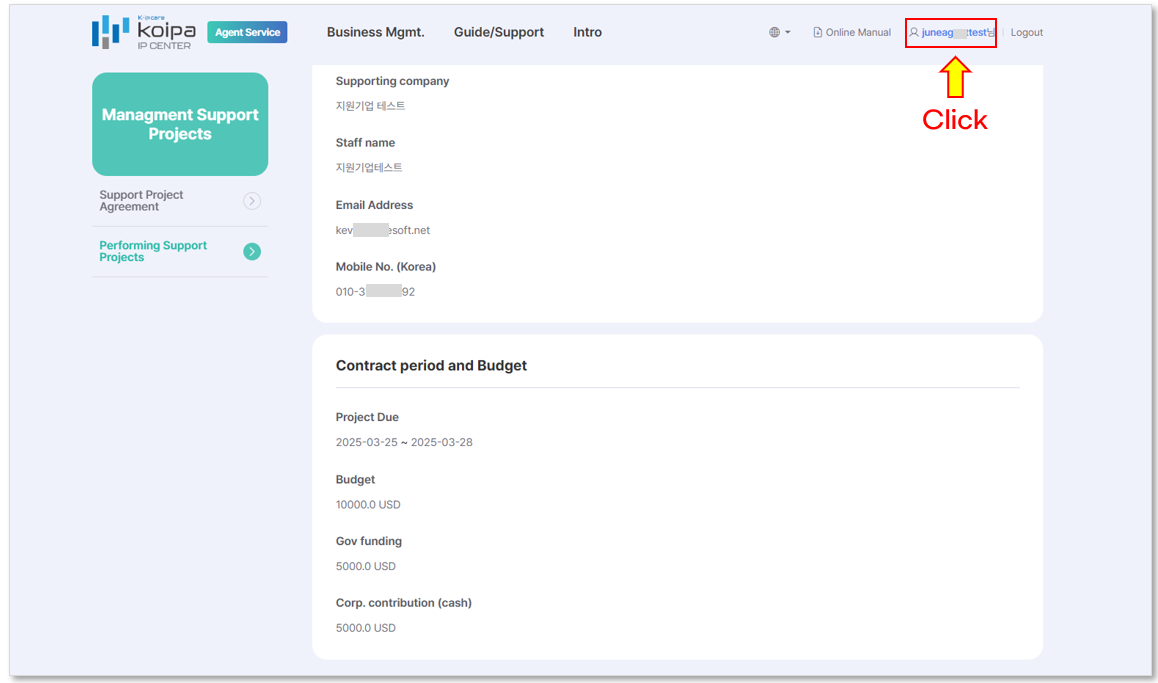
① Click the user ID in the upper right corner to access the Company Information Management page.
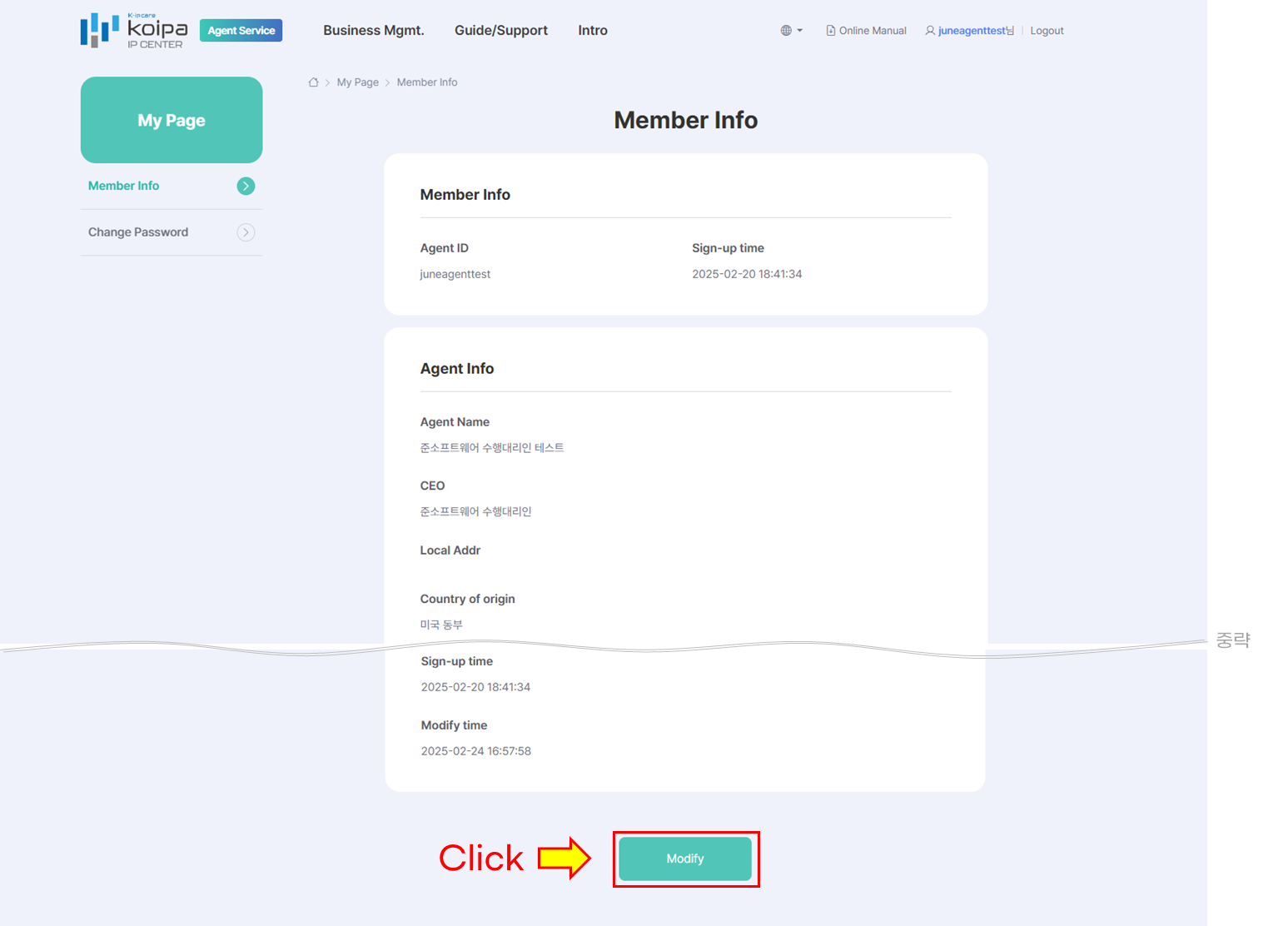
② Click [Modify] to modify company details.
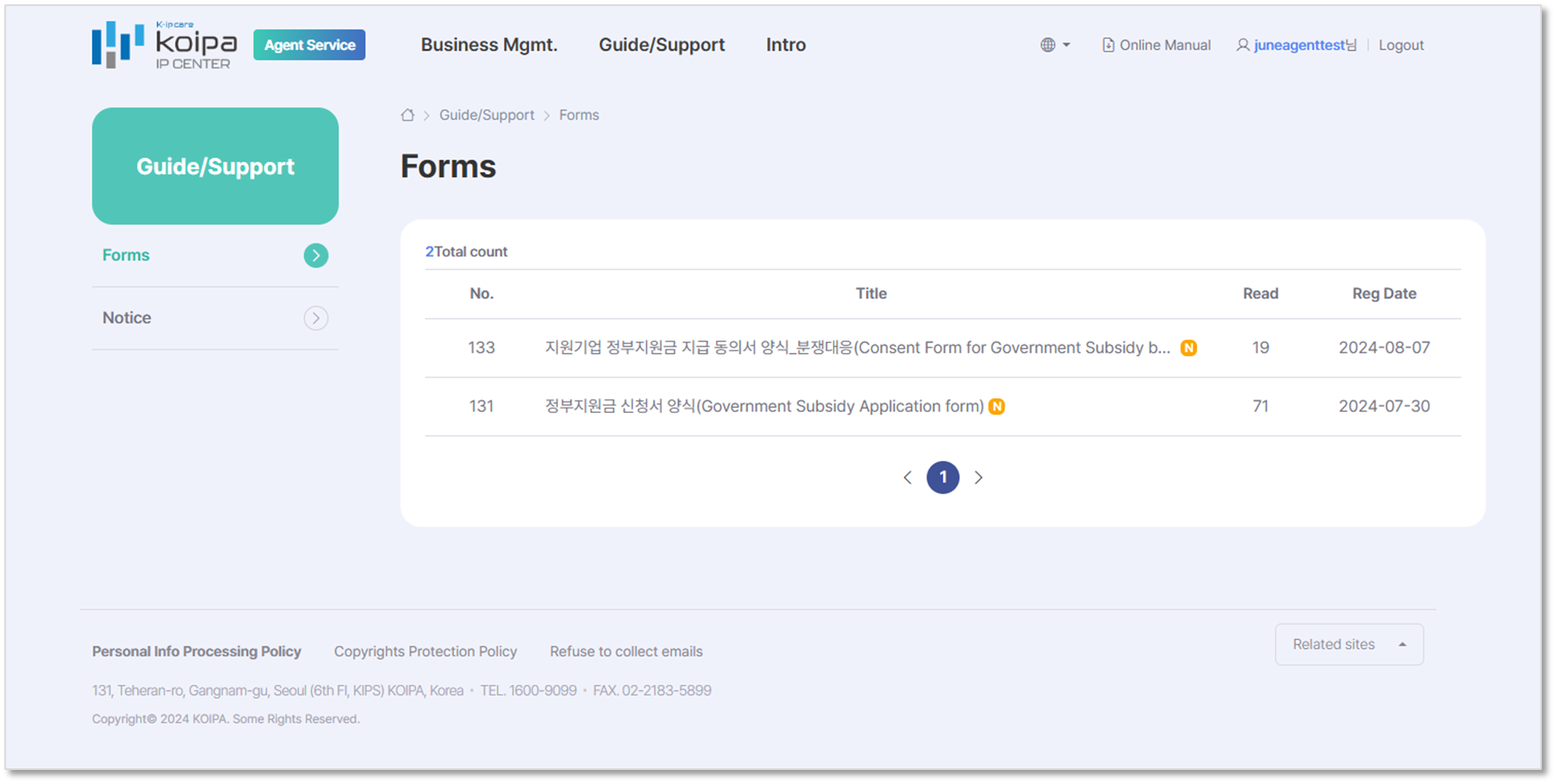
5. Forms Repository
Provides required document templates for proxy agents.
6. Announcements
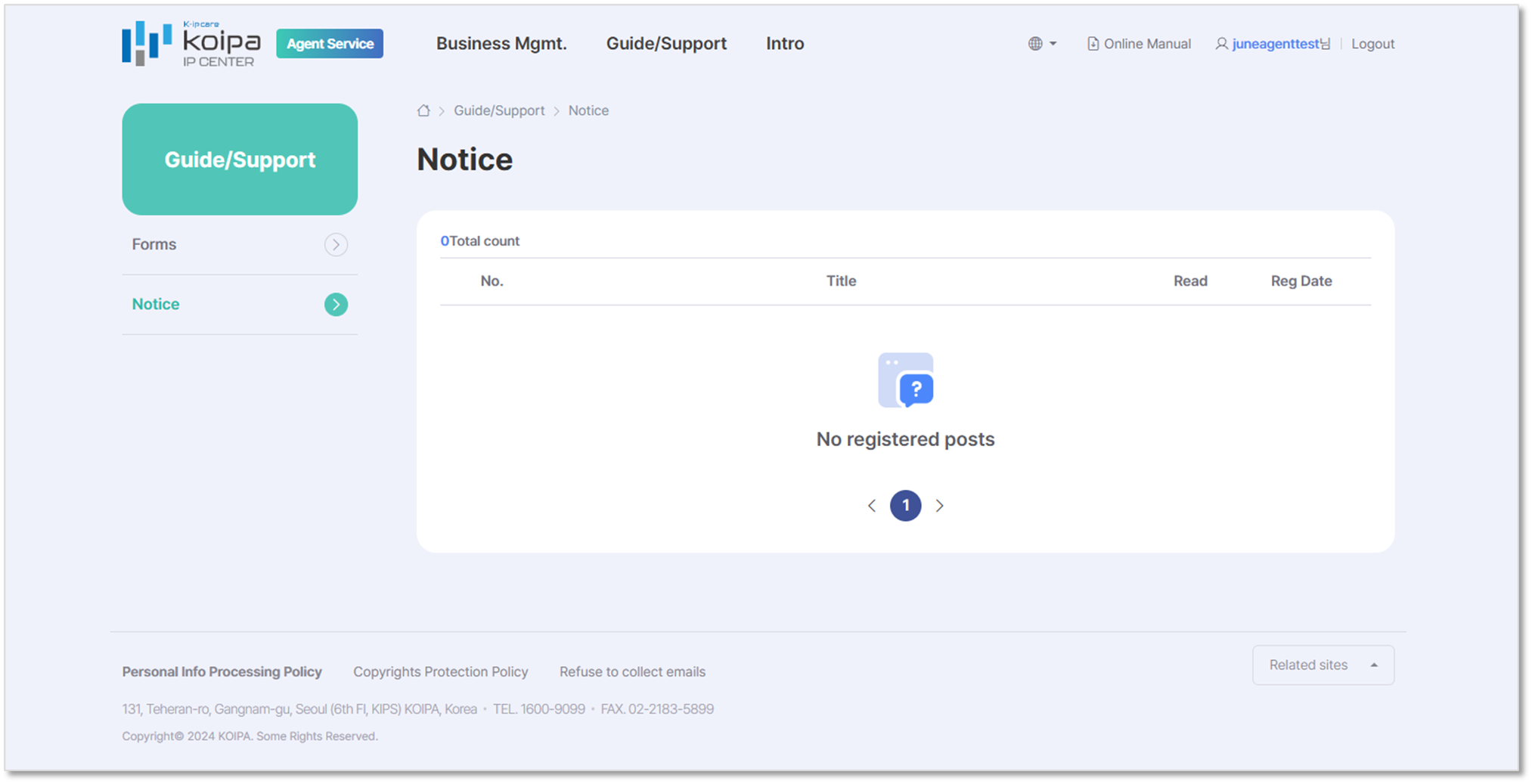
Important notifications regarding the IPCENTER Support Projects will be posted here.